Post Processing Bloom Effect & Composer Only Creating White Screen

Hey there, you said you can’t see anything but a blank white screen right? I think it is because the quotes in your code are wrong, for example, in the first line of your code it is already causing error because you are using this type of quote ‘ ’; and you can only use " " or ’ ', it is causing error because these quote style isn’t accepted in javascript.

Also, you need to set emissive: “red” (or any color you want) and emissiveIntensity: 10 (adjust this value as you need), in your material.

I recommend you using a linter for your code because I assume you are not using it because a linter would have caught this quote issue.

Also if you want I can create a demo with the postprocessing library I mentioned to you, if you want using it instead of postprocessing from three js you need to install it with “npm i postprocessing”, but the usage of this is quite the same with some minor differences.

Okay, so if it’s alright, I would like to address one thing at a time until all things are resolved. You mentioned the quotes, but I didn’t see any errors thrown in VS Code and I used the same syntax style that the threejs.org website specifically referenced here: https://threejs.org/docs/#manual/en/introduction/How-to-use-post-processing for the import settings. I was informed earlier by Mugen87 to use the import method and I followed the threejs website per the above link. I’m still taking your recommendation though and I’ve changed all single quotes to " "; so that has now been changed. However, it’s still coming through white so changing it to the double quotes isn’t the only thing, but I know that you know that, but this brings me to my next question. What do you mean set the emissive: “red” and emissiveIntensity: 10 in the material? I’m not using those, and I’m unsure how to add those. I’m happy with seeing what demo you come up with, that is perfectly fine and welcome for learning purposes, but I’m also happy to address these other things as we go too. Thanks for your response and I look forward to hearing back!

1 Like

Here it is the live code with postprocessing library: https://codesandbox.io/p/sandbox/w8wdn4?file=%2Fsrc%2Findex.html

As you can see it is much alike the three js postprocessing with some minor changes, and you need to set frameBufferType: HalfFloatType in the composer renderer as it is in the code for making it work, also I changed to new THREE.Color() in the emissive material because it gives more variation of colors you may want to combine, you just need to adjust those 3 values from 0 to 1 to make the color you want.

And I noticed for blue-like colors, you need to set the emissionIntensity higher for making it glow, I don’t know why though.

When I copied your code my linter said that all quotes were giving error, not only in the first line of code. But aside from it everything was correct in your code, you only needed to set emissive and emissiveIntensity in your code and I put them in the demo that I sent you.

But if you don’t want to use the postprocessing one that I used there, I can create one with your own code with no problem since it is working great as well.

In general your code was more than correct, only needed really to fix the quotes and set the emission that is in the demo.

Also you if you notice in the material of the cubes I set the new THREE.Color() with 3 values inside, the values from 0 to 1 stand for RGB and if you change the first one it will glow red, the second green… and on. and you can mix them as you want from 0 to 1.

It’s still not running on my local browser. Still all white screen. Nothing is rendering. I copied the altered demo that you made verbatim to a new js file, and referenced it in the index.html exactly as you had it, and it still just gives me a solid white screen. Here’s a screenshot example of my light casting program with no bloom effect:


That is with no postprocessing or bloom effects. Obviously I’m wanting to drag the light around and place individual point lights, but with the bloom effect provided to each of them so they render like the glowing circle from this demo:

but I cannot make this happen, and I don’t know why that sandbox website is working and displaying everything, but then when I copy the code exactly as-is, it still only renders white screen for me whether I run it locally on my computer, or out on my server. Neither works and I don’t know why.

did you try installing postprocessing? you should do it by typing “npm i postprocessing”

Yes, already up to date:

If you are getting all white screen, there may be a problem with your bundler. Are you using any like Webpack, Vite? I recommend Vite because they are always updating and it is really fast.

For testing matters I tried replicating the exact same code without any bundlers only plain js and html and I got the following error in my console " Uncaught TypeError: Failed to resolve module specifier “three”. Relative references must start with either “/”, “./”, or “…/”. "

it means that three js couldn’t be loaded.

Whereas in the Vite one that I used, it worked with no problem.

I have never heard of Vite. I can install it if you think it will work. Does it basically provide a lot of extra dependency files? What exactly makes it function along side with my code?

Apparently via npm install vite was already up to date on my computer and did not know it. However, I ran a check with homebrew and was able to install several extra files via brew install. I’m not sure what I can do with it, but it looks to be installed on my machine now. As far as the uncaught type error, I have no idea what that is in reference to with my code. I’m not sure what the issue is at this point, but I cannot run any files that use these composer, bloom and other effects for three.js and it’s really becoming exhausting, but I feel like I’m so close, but I don’t know why the white screen will not go away.

the best is to use “npm create vite@latest” because it will install the latest one, and you choose vanilla js.

It will create some files and you add your js file like you normally would without any bundler, adding it to the html.

I really think this is the problem because when I tried without vite, it didnt work at all for me, not even three js loaded.

In your console did you get the same error as I mentioned above? If so, there is a high chance it is the lack of a bundler and using vite should fix it.

Basically what vite or any other bundler do, in the runtime it will join all your files in one file, optimize it for best performance, it is all done automatically and all you need to do is type “npm run dev” when you want to run your code and open the localhost in the browser.

Here you can check vite documentation.

Alright, so I’m using Vite, all set up, but I’m still getting a white screen. Here’s the code I’m trying to run, but it’s not working, and I have no errors that I’m seeing:
/*import * as THREE from “three”;
import { EffectComposer } from “three/addons/postprocessing/EffectComposer.js”;
import { RenderPass } from “three/addons/postprocessing/RenderPass.js”;
import { UnrealBloomPass } from “three/addons/postprocessing/UnrealBloomPass.js”;
import { OutputPass } from “three/addons/postprocessing/OutputPass.js”;
*/
import * as THREE from “three”;
import {
EffectComposer,
RenderPass,
BloomEffect,
EffectPass,
} from “postprocessing”;
import { HalfFloatType } from “three”;

//Scene, Camera, Renderer
const scene = new THREE.Scene();
const camera = new THREE.OrthographicCamera(
window.innerWidth / -50,
window.innerWidth / 50,
window.innerHeight / 50,
window.innerHeight / -50,
0.1,
100
);
const renderer = new THREE.WebGLRenderer({ antialias: true });
renderer.setSize(window.innerWidth, window.innerHeight);
renderer.shadowMap.enabled = true;
document.body.appendChild(renderer.domElement);

//Ambient Light
const ambientLight = new THREE.AmbientLight(0x404040, 0.5);
scene.add(ambientLight);

//Ground
const groundGeometry = new THREE.PlaneGeometry(50, 50);
const groundMaterial = new THREE.MeshStandardMaterial({
color: 0x333333,
metalness: 0.2,
roughness: 0.8
});
const ground = new THREE.Mesh(groundGeometry, groundMaterial);
ground.rotation.x = -Math.PI / 2;
ground.receiveShadow = true;
scene.add(ground);

//Cubes
const cubeGeometry = new THREE.BoxGeometry(1, 1, 1);
for (let i = 0; i < 10; i++) {
const cubeMaterial = new THREE.MeshStandardMaterial({
/emissive: new THREE.Color(0, 0, 1),
emissiveIntensity: 30,
/
color: 0x7777ff,
metalness: 0.3,
roughness: 0.6
});
const cube = new THREE.Mesh(cubeGeometry, cubeMaterial);
cube.position.set((Math.random() - 0.5) * 20, 0.5, (Math.random() - 0.5) * 20);
cube.castShadow = true;
cube.receiveShadow = true;
scene.add(cube);
}

//Point Light
const mainLight = new THREE.PointLight(0xffffff, 5.0, 25, 1.5);
mainLight.castShadow = true;
mainLight.shadow.mapSize.width = 2048;
mainLight.shadow.mapSize.height = 2048;
scene.add(mainLight);

//Helper Sphere for Main Light
const lightSphereGeometry = new THREE.SphereGeometry(0.3, 26, 26);
const lightSphereMaterial = new THREE.MeshBasicMaterial({ color: 0xffff00 });
const lightSphere = new THREE.Mesh(lightSphereGeometry, lightSphereMaterial);
scene.add(lightSphere);

//Post-processing
const composer = new EffectComposer(renderer);
const renderPass = new RenderPass(scene, camera);
composer.addPass(renderPass);

const bloomPass = new UnrealBloomPass(
new THREE.Vector2(window.innerWidth, window.innerHeight),
0.5, //Strength
0.4, //Radius
0.85 //Threshold
);
composer.addPass(bloomPass);

//Output Pass for proper tone mapping and output encoding
const outputPass = new OutputPass();
composer.addPass(outputPass);

//Mouse Control for Light
const mouse = new THREE.Vector2();
const raycaster = new THREE.Raycaster();
window.addEventListener(“mousemove”, (event) => {
mouse.x = (event.clientX / window.innerWidth) * 2 - 1;
mouse.y = -(event.clientY / window.innerHeight) * 2 + 1;

raycaster.setFromCamera(mouse, camera);
const intersects = raycaster.intersectObject(ground);
if (intersects.length > 0) {
    const point = intersects[0].point;
    mainLight.position.set(point.x, 1, point.z);
    lightSphere.position.copy(mainLight.position);
}

});

//Animation Loop
const animate = () => {
requestAnimationFrame(animate);
composer.render();
};

animate();

Alright, so it works now, but it’s only your demo, which made significant changes. E.g., there’s no light that follows the mouse like I originally set it up, and there’s no ability to place down individual lights, and the cubes emit light, which is not what I am originally doing. I’m trying to add lights, and my original code that I posted above has that, but not your demo version. Do you have some time to talk about this so this can get resolved?

Let me get it straight, are you trying to add bloom effect to the light and not to a mesh?

I thought you were trying to replicate this demo that you had sent.

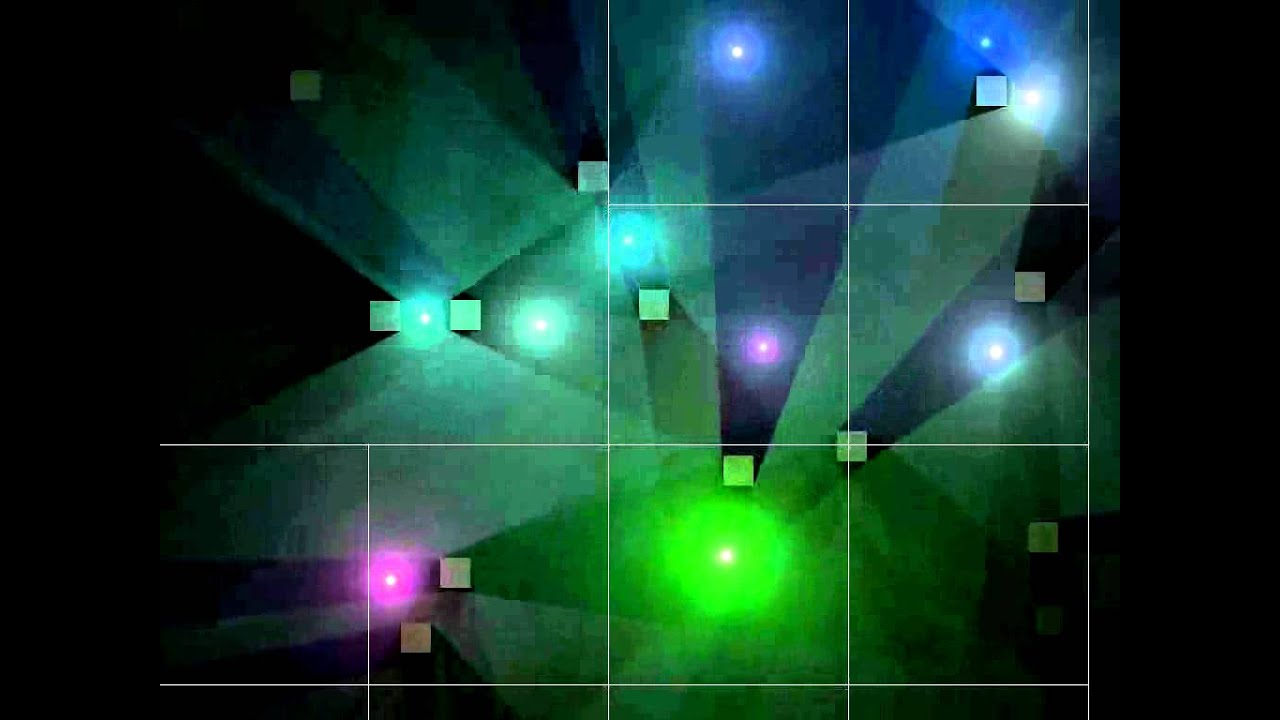
Thanks for your response, but No. I used that demo as a visual example against my original program of what I wanted my light sources to look like. I figured you were emitting the cubes simply as your own example, that’s not at all what I want. I want to leave the cubes alone, and just have my light sources glow just like the react example that I provided. You see that bloom effect on the circle to the far right? That’s the effect that I want for each of my lights that I click into my scene. Basically, picture that glowing circle on each of these lights in this program:


Does that make sense? I apologize that I wasn’t clear about that in the beginning. What I want is the original light that follows the mouse to be a plain white light, and then just as my original program shows, I dynamically place down more point lights, but they need to have the bloom effect glowing from them. Here’s a YouTube video of EXACTLY what I’m looking for minus the weird grid lines:

I look forward to talking more about it, thanks!

I can only think of this with meshes being placed across the scene and they glow just like the cube did in my example, I don’t think it is possible to add bloom effect to lights itself, someone with more experience than I could tell it better, but with some adjustments in your code, instead of adding multiple lights and adding bloomed instanced spheres instead, I think you can achieve this.

That is very disappointing. Of all things to add bloom effects to, I don’t see how the user couldn’t add bloom effects to lights, that is very confusing to me. So if I create a helper sphere as my primary light source like so:
const lightSphereGeometry = new THREE.SphereGeometry(0.3, 26, 26);
const lightSphereMaterial = new THREE.MeshBasicMaterial({ color: 0xffff00 });
const lightSphere = new THREE.Mesh(lightSphereGeometry, lightSphereMaterial);
scene.add(lightSphere);
I’m using a meshbasicMaterial here, could I not apply the bloom effect onto that object?

Adding lights as I do dynamically should work to add the bloomEffect to them within this function:
const additionalLights = ;
const addLight = (x, z) => {
const newLight = new THREE.PointLight(Math.random() * 0xffffff, 2, 2);
newLight.position.set(x, 1, z);
newLight.castShadow = true;
scene.add(newLight);
additionalLights.push(newLight);

        const lightSphere = new THREE.Mesh(
            new THREE.SphereGeometry(0.2, 1, 4),
            new THREE.MeshBasicMaterial({ color: newLight.color })
        );
        lightSphere.position.set(x, 1, z);
        scene.add(lightSphere);
    };

Does that not seem feasible or at least align with what you were mentioning in your response?

Oh yup, this way it would would work because it is a mesh, what I think it doesn’t work is adding bloom effect to lights itself, like DirectionalLight, or AmbientLight, PointLight, these I think it wouldn’t work, as I said maybe someone else can tell it better, but if instead of adding multiple lights to the scene, then adding multiple sphere meshes with bloom effect with them, then you could get what you want.

I will try to come up with something here to see if it would work and I reach to you asap.

Here is a updated demo that I think it is really close to what you want except for light ray that I couldn’t achieve the same result, maybe you need to play around with the spot light I used there.

Here are the changes that I made:

1 - I placed all the cubes in the same place in Z-axis otherwise they would have different depths and the light wouldn’t affect them in any way, and just changed their random position for the Y axis because before they were aligned in one row because Y was the same for all of them.

2 - Instead of using raycaster I added some custom code for tracking mouse position though raycaster would be fine in this, but I had some trouble in using it with ortographic camera so I opted for the custom one.

3 - a mesh with bloom effect is added along with a spot light when clicked on screen, you need to make some adjustments if you want having that “cone” like shape of light, I think if you play around with enough properties maybe you can reach to this.

And it was all, it wasnt the same effect but with some changed in the code, I think it is possible to reach that same video results.